Quickstart · 5 min read
Turn a topic into a 6-slide carousel in 1 minute
Pick a design, type a topic, let your AI write the slides, then polish and export.
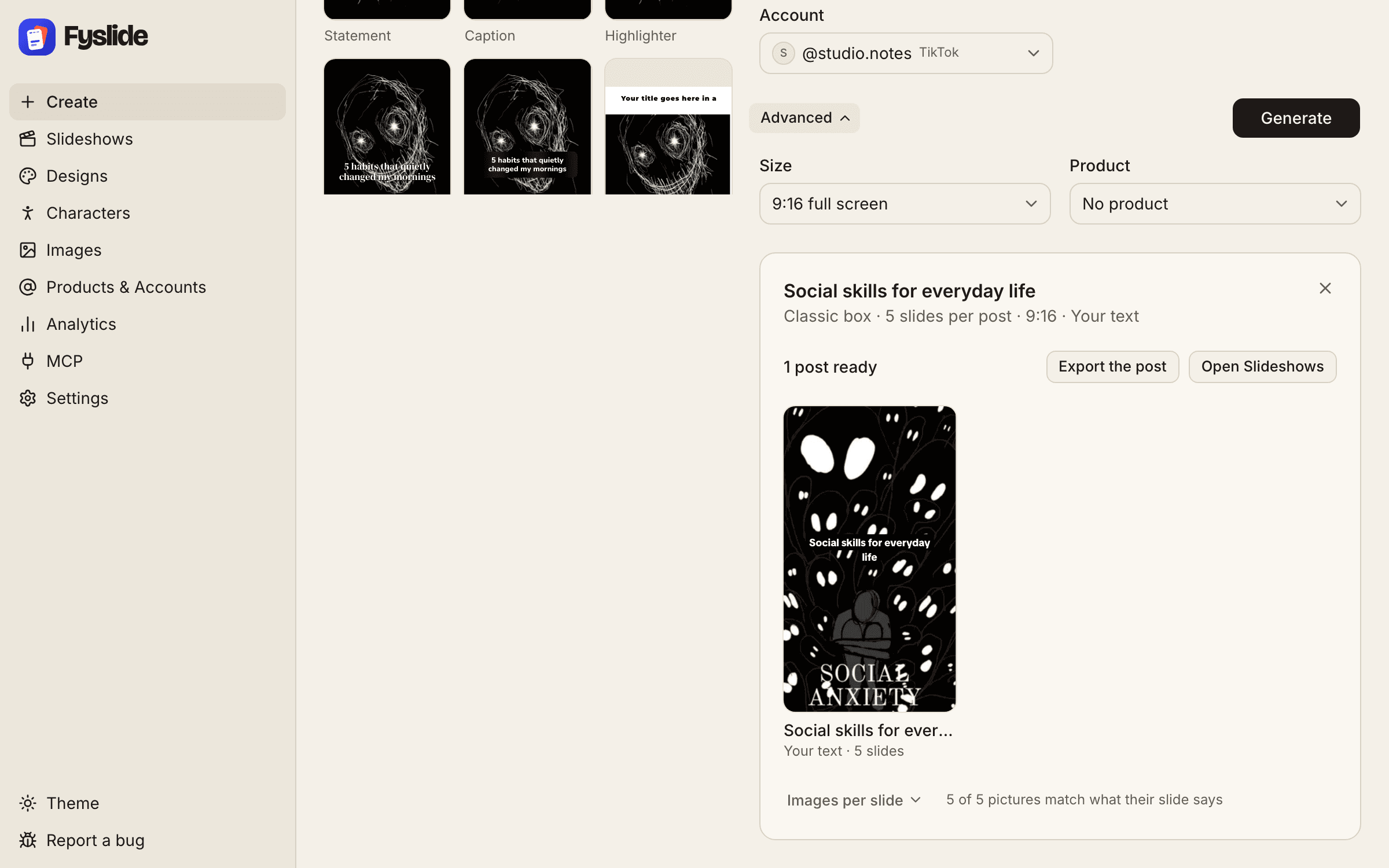
This is the fastest path from an idea to a finished carousel. You need Fyslide installed and licensed, and one AI connected (any of them works for writing texts; see AI setup). Once that is done, the steps below take about a minute plus the time to polish.
1. Pick a design
Open Create, switch to From one of my designs and choose a design. A design defines the layout of each slide: where the text goes, the fonts, colors and image areas. Start with one of the built-in designs; you can make your own later.
2. Give it a topic
Type what the carousel is about in one line into Topic, for example “5 mistakes beginners make with sourdough”. Be specific: the more concrete the topic, the better the hook and the slide texts your AI writes. If you use recurring characters, pick the character as Image source.
3. Let the AI write the slides
Click Generate. Fyslide sends the topic and the design’s structure to the AI you connected and fills the slides with the texts it returns. The request goes from your computer straight to your provider (or stays on your computer with Ollama).
4. Add images
Pictures come from the Image source you chose: a collection in your image library (Images in the sidebar), Pinterest or AI images. Fill your library by dragging in files, pasting from the clipboard or importing a folder. Need a cut-out? Use local background removal (Apple Vision). You can also search Openverse for Creative Commons images; keep the attribution the license asks for.
5. Polish in the editor
Open the finished post to adjust text, images, stickers and shapes. Read every slide once on its own: does slide 1 make people swipe? Does the last slide close the loop?
6. Export
Export writes pixel-perfect PNG or JPG slides, the caption and a zip into a folder you choose. Upload the slides to TikTok or Instagram from there.
Tips
- Six slides is a good default: a hook, four points, and a closing slide.
- Reuse one design for a series so your posts are recognizable.
- If the texts don’t fit, shorten the topic or edit the longest slide by hand.
Every setting and limit is explained in the Create guide; Export covers the files you get.