Docs
MCP server
Fyslide ships a local MCP server. Connect Claude Code, Codex or Cursor and let your agent list designs, create slideshows, edit texts, replace images and export.
Before you start
- Fyslide must be running. The MCP tools talk to the open app; if it is closed they report that they can’t reach it.
- An active license is required. The app must be activated on this computer.
- Everything stays local: the server runs on your computer and is started by your agent as a local process (stdio).
Connect in one click
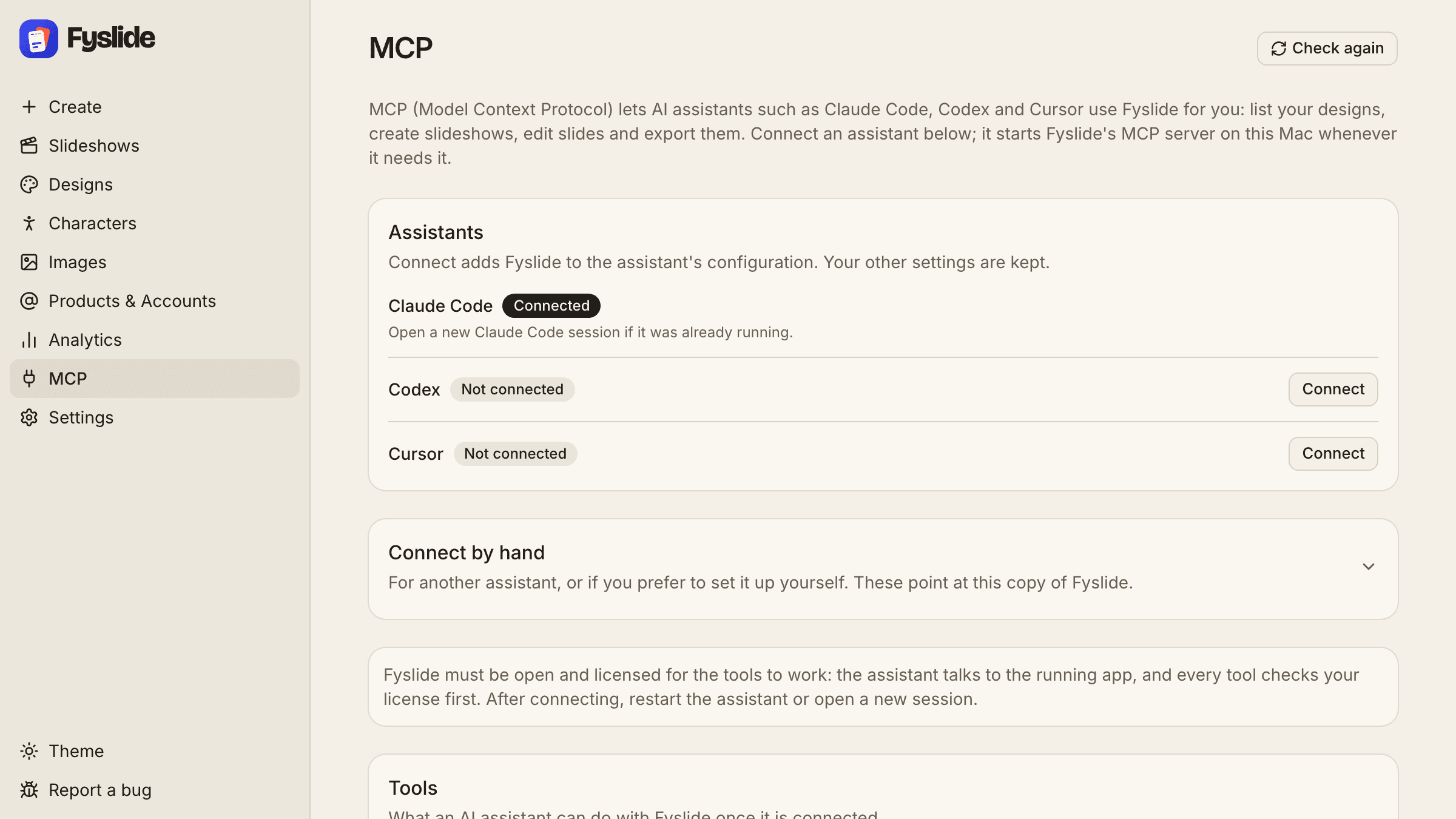
- Open Fyslide and go to the MCP page.
- Click Connect next to Claude Code, Codex or Cursor.
- Start a new session in your agent (restart Cursor) so it loads the server.
What Connect does: for Claude Code it runs claude mcp add if the CLI is installed, otherwise it adds the server to ~/.claude.json. For Codex it adds a [mcp_servers.fyslide] table to ~/.codex/config.toml; for Cursor it adds an entry to ~/.cursor/mcp.json. Existing config files are backed up next to the original (.fyslide-backup) and nothing else in them is changed.
Manual setup
Claude Code (terminal)
claude mcp add fyslide -s user -e ELECTRON_RUN_AS_NODE=1 -- '/Applications/Fyslide.app/Contents/Frameworks/Fyslide Helper.app/Contents/MacOS/Fyslide Helper' /Applications/Fyslide.app/Contents/Resources/app.asar.unpacked/out/mcp/server.jsCursor and other JSON configs
Add this to ~/.cursor/mcp.json (or your client’s MCP JSON file):
{
  "mcpServers": {
    "fyslide": {
      "command": "/Applications/Fyslide.app/Contents/Frameworks/Fyslide Helper.app/Contents/MacOS/Fyslide Helper",
      "args": [
        "/Applications/Fyslide.app/Contents/Resources/app.asar.unpacked/out/mcp/server.js"
      ],
      "env": {
        "ELECTRON_RUN_AS_NODE": "1"
      }
    }
  }
}
Codex
Add this to ~/.codex/config.toml:
[mcp_servers.fyslide]
command = "/Applications/Fyslide.app/Contents/Frameworks/Fyslide Helper.app/Contents/MacOS/Fyslide Helper"
args = ["/Applications/Fyslide.app/Contents/Resources/app.asar.unpacked/out/mcp/server.js"]

[mcp_servers.fyslide.env]
ELECTRON_RUN_AS_NODE = "1"
Gemini CLI
The one-click Connect does not cover Gemini CLI. Add the JSON entry above to the mcpServers object in ~/.gemini/settings.json; the Gemini CLI guide has the details.
The paths assume Fyslide is installed in /Applications. ELECTRON_RUN_AS_NODE=1 lets the Fyslide binary run the server script with its built-in Node runtime, so you don’t need Node installed.
How your agent should work with it
The server gives agents these instructions:
Fyslide makes photo-slideshow posts on the owner's Mac; these tools talk to the running, licensed app. Long work (create_slideshow, generate, export_slideshow) answers a job_id: follow it with wait_for_job. Anything that costs money answers a plan with a token: show the plan, and call confirm only after the owner says yes. Pictures are given as absolute file or folder paths on this Mac (for a picture attached to the chat, use its file path) or as http(s) links.
In practice: anything that costs money (AI calls) or overwrites your work first comes back as a plan. Your agent shows it to you and calls confirm only after you agree. Images are passed as absolute paths on your computer.
Tool reference
21 tools, server name fyslide. Last updated 2026-11-03.
- Read: list_designs, list_collections, list_slideshows, get_slideshow, search_library, get_job, wait_for_job, list_planned_posts
- Make: create_slideshow, rebuild_from_screenshots, design_from_screenshots, import_images, export_slideshow, generate
- Change: update_slide_text, update_slide_element, replace_slide_image, confirm, plan_post, move_planned_post, remove_planned_post
Read
Look things up in Fyslide and follow jobs. These tools change nothing.
list_designs
Lists the slideshow designs (templates) with id, name, ratio and slide roles. Use it first to find the design_id that create_slideshow needs.
No inputs.
Returns: The count and the designs: id, name, ratio and slide roles.
Note: Read-only.
list_collections
Lists the image collections of the library with id, name and image count. Use it to find a collection_id for create_slideshow, import_images or search_library.
No inputs.
Returns: The count and the collections: id, name and image count.
Note: Read-only.
list_slideshows
Lists slideshows, newest edit first, with id, title, slide count and dates. Use it to find a slideshow_id; filter by account, platform, published state, creation day (from/to, YYYY-MM-DD) or words.
| Input | Type | Description |
|---|---|---|
account_id | string | An account id (see the account field of get_slideshow), or "none" for slideshows without an account |
platform | "tiktok" | "instagram" | |
published | boolean | true: only published ones; false: only unpublished ones |
from | string (YYYY-MM-DD) | |
to | string (YYYY-MM-DD) | |
query | string | Words in the title, topic, slide texts or caption |
limit | integer | Default 20 |
Returns: The total number of matches, how many are shown, and the slideshow items (id, title, slides, account, dates).
Note: Read-only.
get_slideshow
One slideshow slide by slide: every text box (id, role, text, box), every picture slot (id, image ids per cell) and shape, the background image and the last export. Use it before editing to get slide numbers and element ids.
| Input | Type | Description |
|---|---|---|
slideshow_idrequired | string | From list_slideshows or a finished create job |
Returns: The slideshow slide by slide: text boxes (id, role, text, box), picture slots (id, image ids per cell), shapes, background, and the last export.
Note: Read-only. Fails with a hint to use list_slideshows if the id does not exist.
search_library
Searches Fyslide's image library by words (tags, subject, file and collection names), best match first. Use it to find an image_id for replace_slide_image.
| Input | Type | Description |
|---|---|---|
queryrequired | string | |
collection_id | string | Only search this collection |
limit | integer | Default 12 |
Returns: The total and the best matches: image id, size, subject and tags.
Note: Read-only.
get_job
Status of a job another tool started (create_slideshow, generate, export_slideshow, the screenshot tools): status, step, progress, the result once done and the next action. Answers at once; use wait_for_job to block until it finishes.
| Input | Type | Description |
|---|---|---|
job_idrequired | string | The job_id a tool answered |
Returns: The job's status (queued, running, needs_input, done, failed, cancelled), its step, the result once done and the next action.
Note: Read-only. Answers at once.
wait_for_job
Blocks until a job finishes or needs the owner (or timeout_seconds pass, default 60, max 300), then answers status and result like get_job. Use it after create_slideshow, generate or export_slideshow instead of polling; if it answers running, call it again.
| Input | Type | Description |
|---|---|---|
job_idrequired | string | The job_id a tool answered |
timeout_seconds | integer | How long to wait at most (default 60, max 300) |
Returns: Like get_job, after waiting until the job is no longer running or timeout_seconds have passed.
Note: Read-only. If the answer is still running, call it again.
list_planned_posts
Lists the slideshows on the owner's Planner calendar, soonest first: id, slideshow, date and time, account and status (planned, posting, posted, failed, missed, attention). Filter by day (from/to, YYYY-MM-DD, both included).
| Input | Type | Description |
|---|---|---|
from | string (YYYY-MM-DD) | |
to | string (YYYY-MM-DD) |
Returns: The count and the planned posts: id, slideshow, date and time, account, status and whether a TikTok post is scheduled.
Note: Read-only.
Make
Create something new: slideshows, designs, imports and exports. Long work answers a job_id. Anything that costs money answers a plan and a confirm token first.
create_slideshow
Starts a job that fills a design with a topic's slides and pictures (the writing uses the app's text provider; Manual mode uses templates). Answers a job_id at once: follow it with wait_for_job. A paid run answers its cost and a confirm token first; items that do not fit the design answer a question.
| Input | Type | Description |
|---|---|---|
design_id | string | From list_designs |
topic | string | What the slideshow is about |
slide_count | integer | Slides per slideshow (default: the design's) |
collection_id | string | Take the pictures from this collection (list_collections); without it Fyslide searches Pinterest |
images | "collection" | "pinterest" | "ai" | Where pictures come from; default collection when collection_id is given, else pinterest. ai is paid (OpenAI) |
account | string | The account the slideshow is for: its id or @username |
text | string | The exact slide text, word for word (blank line = new slide, --- = new slideshow); omit and Fyslide writes it |
count | integer | How many slideshows (default 1) |
fit | "adjust" | "keep" | The answer to a fit question |
job_id | string | Only this: continue that Create job (waiting at its angles, or stopped; a paid one answers a plan first) |
Returns: A job_id and the job's first state; a plan with a confirm token for paid runs; a question when the items do not fit the design.
Note: Start of the job pattern: follow the job_id with wait_for_job. With the Manual text provider nothing is paid and no AI is used.
rebuild_from_screenshots
Use when the owner has screenshots of a post to copy: rebuilds that design 1:1 with the owner's own words. Step 1 { paths, prompt, collection_id? } → fonts; step 2 { job_id, fonts? } → the plan to review; step 3 { job_id, build: true } after the owner's yes → a job to follow with wait_for_job.
| Input | Type | Description |
|---|---|---|
paths | string[] | Absolute paths of the screenshots in slide order, or one folder (its PNG/JPG/WebP files in name order); ~ works |
prompt | string | What the rebuild is for: "rebuild this for Moonbeam, my app for weekend hikes" |
collection_id | string | Where the pictures come from (a collection id); default Search Pinterest |
job_id | string | |
fonts | object[] | |
build | boolean | true: build the reviewed plan |
Returns: Step 1: font candidates. Step 2: the plan to review. Step 3: a job that builds the slideshow.
Note: Show the plan to the owner before building.
design_from_screenshots
Use when the owner wants a reusable design that looks like some post screenshots. Step 1 { paths }: the font candidates per text look (about a minute). Step 2 { job_id, fonts? }: picks them (default: the top ones) → the design_id for create_slideshow.
| Input | Type | Description |
|---|---|---|
paths | string[] | Absolute paths of the screenshots in slide order, or one folder (its PNG/JPG/WebP files in name order); ~ works |
job_id | string | |
fonts | object[] | Per text look (its key) the family and weight to use |
Returns: Step 1: font candidates per text look. Step 2: the new design_id.
Note: Two steps; the second may be skipped to take the top fonts.
import_images
Use to add pictures to Fyslide's library: absolute file paths, folders (read recursively, image files only) and/or http(s) links. Optionally into a collection. Answers how many were imported plus the image_ids to use with replace_slide_image.
| Input | Type | Description |
|---|---|---|
sourcesrequired | string[] | Absolute file or folder paths on this Mac (~ works) and/or http(s) image links |
collection_id | string | Add them to this collection (list_collections) |
Returns: How many pictures were imported, how many were duplicates, which failed, and the image_ids.
Note: Folders are read recursively; only image files are taken.
export_slideshow
Use to get the finished pictures: renders a slideshow into a NEW folder inside the owner's chosen export folder (Settings → Export; until one is chosen, an Exports folder in the app's own data folder) and answers the folder, the image file paths, the zip and small previews. The app's remembered export options stay as they are.
| Input | Type | Description |
|---|---|---|
slideshow_idrequired | string | From list_slideshows |
format | "png" | "jpg" | Default: the app's export setting |
slide | integer | Only this slide (1 = first); omit for all |
strip_metadata | boolean | Remove all metadata; default: the app's export setting |
Returns: The export folder, the image file paths, the zip, the format and small previews. A long export answers a job_id instead.
Note: Exports go to the folder chosen in Settings → Export; a new folder is made each time.
generate
Use to redo the AI work on an EXISTING slideshow: what=text rewrites slide texts with the app's text provider; what=images puts new pictures in the picture slots (source=collection takes the next unused pictures of the slideshow's collection, free; source=ai makes new ones with OpenAI, paid). Whole slideshow or only the given slides. Answers a job_id (follow with wait_for_job); a paid run answers its cost and a confirm token first. Result is saved with a version.
| Input | Type | Description |
|---|---|---|
slideshow_idrequired | string | |
whatrequired | "text" | "images" | text: rewrite the texts; images: new pictures |
slides | integer[] | Slide numbers (1 = first); omit for the whole slideshow |
instruction | string | What to change, e.g. "shorter and funnier" or "more cosy photos" |
source | "collection" | "ai" | images only: collection (default, free) or ai (paid, OpenAI) |
quality | "low" | "medium" | "high" | images from ai only; default medium |
Returns: A job_id (a paid run answers a plan with a confirm token first). When the job is done its result lists what changed.
Note: Works on a slideshow that already exists. The result is saved with a version before and after, so the owner can undo it in the editor.
Change
Edit existing slideshows. Edits are free, saved at once and versioned; confirm carries out the paid plans.
update_slide_text
Use to set new words in one text box of a slide, found by element_id or by role (title, subtitle, body, label, number). Ids and roles come from get_slideshow. Saved at once, with a version before the change.
| Input | Type | Description |
|---|---|---|
slideshow_idrequired | string | |
sliderequired | integer | Slide number, 1 = the first slide |
element_id | string | The text box id from get_slideshow |
role | "title" | "subtitle" | "body" | "label" | "number" | Instead of element_id: the text box with this role (must be unique on the slide) |
textrequired | string | The new text; "\n" is a line break |
Returns: The old and new text of the box.
Note: Saved at once, with a version before the change.
update_slide_element
Use to adjust one element of a slide (text, picture frame, cut-out, shape, overlay): position and size in % of the canvas, rotation, and the common look (text size, font, colour, alignment; picture fit, corner radius, mirroring; shape colour and opacity). Give only what changes. Elements locked with the position lock keep their place; an element locked in the design is the post's own and can be changed. Saved at once, with a version.
| Input | Type | Description |
|---|---|---|
slideshow_idrequired | string | |
sliderequired | integer | Slide number, 1 = the first slide |
element_idrequired | string | The element id from get_slideshow |
x | number | Left edge, % of the canvas width |
y | number | Top edge, % of the canvas height |
w | number | Width, % of the canvas width |
h | number | Height, % of the canvas height |
rotation | number | Degrees, clockwise |
font_size | number | Text: size in % of the canvas height |
font_family | string | Text: a font family Fyslide has |
font_weight | integer | Text: 100-900 |
color | string | Text: colour; shape/overlay: fill colour |
align | "left" | "center" | "right" | Text: line alignment |
valign | "top" | "middle" | "bottom" | Text: vertical position in its box |
line_height | number | Text: line height multiplier |
letter_spacing | number | Text: letter spacing in em |
uppercase | boolean | Text: ALL CAPS |
italic | boolean | Text: italics |
fit | "cover" | "contain" | Picture frame: crop to fill or show whole |
radius | number | Picture frame / rectangle: corner radius in px |
flip_x | boolean | Picture: mirror left to right |
flip_y | boolean | Picture: mirror top to bottom |
opacity | number | Shape / overlay: 0 to 1 |
Returns: The element's new box in % of the canvas.
Note: Saved at once, with a version. Locked elements keep their position and size.
replace_slide_image
Use to put a different picture into one picture slot of a slide. Give ONE source: image_id (library, see search_library), file_path (absolute path on this Mac) or url (http/https) – files and links are imported first. With none, the first unused picture of the slideshow's collection is used. A phone mockup takes the picture into its screen. Saved at once, with a version.
| Input | Type | Description |
|---|---|---|
slideshow_idrequired | string | |
sliderequired | integer | Slide number, 1 = the first slide |
element_id | string | The picture slot (frame or cut-out id from get_slideshow); optional when the slide has exactly one |
cell | integer | Grid cell of a frame, 1 = first (default) |
image_id | string | A library image id |
file_path | string | Absolute path of an image file on this Mac (~ works) |
url | string | An http(s) link to an image |
Returns: The new image id in the slot (and what was imported), with a small preview.
Note: Saved at once, with a version. A phone mockup takes the picture into its screen.
confirm
Use ONLY after the owner said yes to a plan that create_slideshow, generate or rebuild_from_screenshots answered with a token: carries out exactly that plan and spends the money it named. A token works once and expires after 15 minutes.
| Input | Type | Description |
|---|---|---|
tokenrequired | string | The token of the plan the owner approved |
Returns: The result of the confirmed action, as the original tool describes it.
Note: Can spend money. Marked as a destructive tool. Only call it after the owner explicitly agreed.
plan_post
Use to put a finished slideshow on the Planner calendar at a date and time, optionally for one of the owner's accounts (account_id from list_slideshows or the app). It only plans: nothing is posted. The same slideshow cannot be planned twice for the same account and time.
| Input | Type | Description |
|---|---|---|
slideshow_idrequired | string | |
atrequired | string | Date and time, e.g. 2026-11-10T18:30 (the owner's local time) or with an offset like 2026-11-10T18:30:00+01:00 |
account_id | string | An account of Products & Accounts |
Returns: The new plan: id, slideshow, date and time, account, status.
Note: Only plans; nothing is posted. The same slideshow twice for the same account and time is refused.
move_planned_post
Use to change the date and time of a post on the Planner calendar (plan_id from list_planned_posts). A missed or failed plan becomes a normal plan again; a new time removes a TikTok schedule (schedule it again in the app). It only changes the plan; nothing is posted.
| Input | Type | Description |
|---|---|---|
plan_idrequired | string | |
atrequired | string | Date and time, e.g. 2026-11-10T18:30 (the owner's local time) or with an offset like 2026-11-10T18:30:00+01:00 |
Returns: The plan with its new date and time.
Note: Only changes the plan; nothing is posted.
remove_planned_post
Use to take a post off the Planner calendar (plan_id from list_planned_posts). The slideshow itself is not touched. A scheduled TikTok post that is removed will not be sent.
| Input | Type | Description |
|---|---|---|
plan_idrequired | string |
Returns: A confirmation with the plan id.
Note: Removes the plan only; the slideshow stays. Marked as a destructive tool.
Troubleshooting
- Tools say Fyslide is not reachable: open Fyslide and keep it running.
- License errors: activate the app on this computer first (see License).
- The agent doesn’t see the tools: start a new session (or restart Cursor) after connecting.
- Moved the app: if Fyslide is not in
/Applications, click Connect again or adjust the paths.
Prefer a walkthrough? Read the MCP workflow guide, or the setup guides for Claude Code, Codex and Gemini CLI.