Create · 7 min read
Create: start a slideshow from a prompt, screenshots or a design
The three Create modes, the settings that matter, the limits, and what happens when you press Generate.
Create is where every slideshow starts. You choose one of three ways in and Fyslide hands you finished slideshows to polish in the editor. To write text you need an AI connected (see AI setup); with Manual selected, Fyslide fills the slides with template text and uses no AI.
1. Choose how it starts
Click Create in the sidebar (or Slideshows → New). At the top you switch between three modes:
- From one of my designs: pick a design and give a topic. Best for a series that should look the same.
- From a prompt: describe the whole post in your own words, what it says and how it looks. Fyslide plans the slides and the layout and shows you the plan first.
- From screenshots: rebuild the structure and look of a post you like with your own words. Needs an AI that can read images.
2. From one of my designs: pick the design
The gallery on the left shows your designs, previewed with pictures from your own library. Click one. Shortcut: type the whole request into Describe the whole post above the gallery, for example “6-slide tier list about weekend hobbies, Minimal design, Pinterest images, for @youraccount”. Fyslide fills in the settings below; nothing runs until you press Generate.
3. Say what the post is about
Type the Topic (up to 300 characters), for example “Saving money in your 20s”. Several topics, one per line, make one post each (up to 50 posts at once). Below it you choose how the slides are written:
- Describe it: put the points, numbers and names you want in What the post says; the AI writes the slides from it.
- My exact text: your own words, slides separated by a blank line, no AI. Fyslide only fits it into the design.
If the design has a Content section (see Designs), voice, structure and call to action are already set, so Create only asks for a topic and an optional Note (optional). Leave the topic empty to take the next unused one from the design’s topic bank.
4. Choose where the pictures come from
Image source lists each of your collections with its image count, Search Pinterest (optional, see Pinterest & image rights), AI generated (needs an OpenAI key, costs money and asks first) and your characters: <name> · new scenes draws a fresh scene per slide, <name> · existing poses reuses pictures you already have and generates nothing. Pick an Account if the post is for one.
5. Fine-tune under Advanced
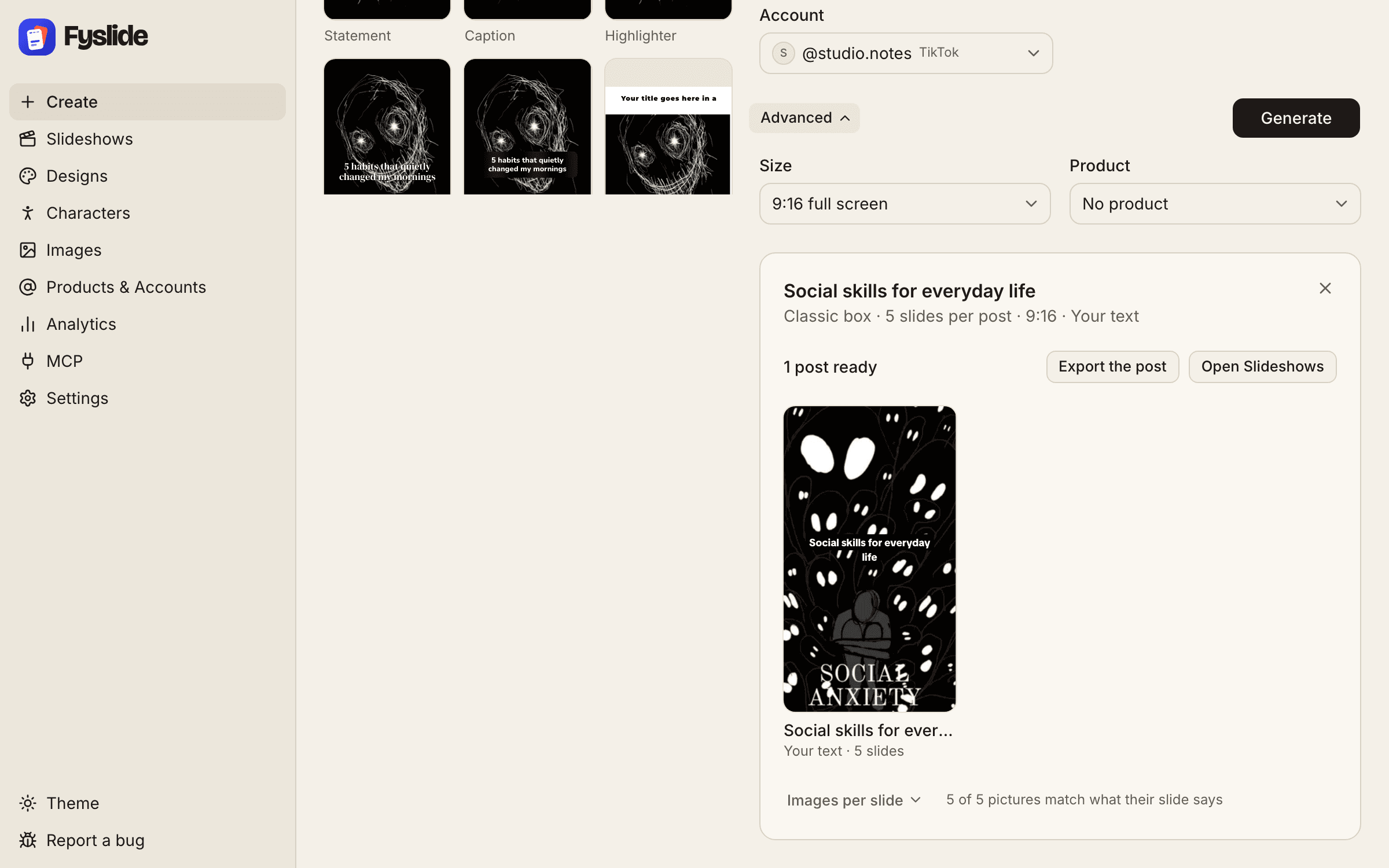
Click Advanced for: Size (seven sizes from 9:16 full screen to 3:2 landscape), Product (its briefing becomes background for the writer), Slides per post (1 to 12; the design’s own number by default), Language, Text generation (which AI for this run, default is the one in Settings → AI), End with a call to action and Review the angles first. With several posts, the angles are the hooks Fyslide proposes; switch the review on to edit or remove them before anything is built.
6. Press Generate
A provider that bills per request (an API key) first shows an estimate and asks you to continue. Then a progress bar runs and each finished post appears as a card. The job keeps running if you leave the page, and Resume continues after a restart. When it is done, click a post to open it in the editor or use Open Slideshows.
7. From a prompt: review the plan, then build
Describe the post in one field (up to 20,000 characters), choose Pictures from and press Plan the post. If you have an OpenAI key, Fyslide offers to let OpenAI design the layout, shows the cost and also offers Use the local model (free). You then get a review with the Planned slides: edit texts, write a slide again, or Plan again. Build it makes the real slideshow. Nothing is built before that.
8. From screenshots: rebuild a format you like
Add the screenshots of one post in slide order (PNG, JPG or WebP, up to 30 files of 25 MB each), say what the rebuild is for (“Rebuild this for my app for solo activities”) and press Read the screenshots. Fyslide measures the layout, asks you to pick the fonts (they cannot be read from pixels), and shows your Original next to the Rebuild with what still differs. Then Build it. Use your own words and pictures; a format is inspiration, not something to copy.
Tips and limits
- Six slides is a good default: a hook, four points and a closing slide.
- Reuse one design for a series; fill its Content section once and a topic is all Create needs.
- Limits: topic 300 characters, note 500, 50 posts per run, 1 to 12 slides per post.
- Everything is saved locally in
~/Library/Application Support/Fyslide. Only the text you send to your chosen AI leaves your computer, straight to that provider (or nowhere with Ollama).