
OpenAI · 6 min read
Use an OpenAI API key with Fyslide
Pay per use with your own OpenAI key. It also unlocks AI image generation, which no other provider can do in Fyslide.
An OpenAI API key lets Fyslide write texts and read pictures with OpenAI models, and it is the one key that also generates images.
What it is and who it suits
Choose this if you want pay-per-use billing instead of a plan, or if you want AI pictures: new character poses, scenes and phone mockups. When you plan a post from a prompt, OpenAI can also design the layout. You can keep another provider for text and add an OpenAI key only for images.
Get a key
- Sign in to the OpenAI platform and make sure billing is set up.
- Create a new API key and copy it once.
- Optional: set a monthly budget on the platform.
Set it up in Fyslide
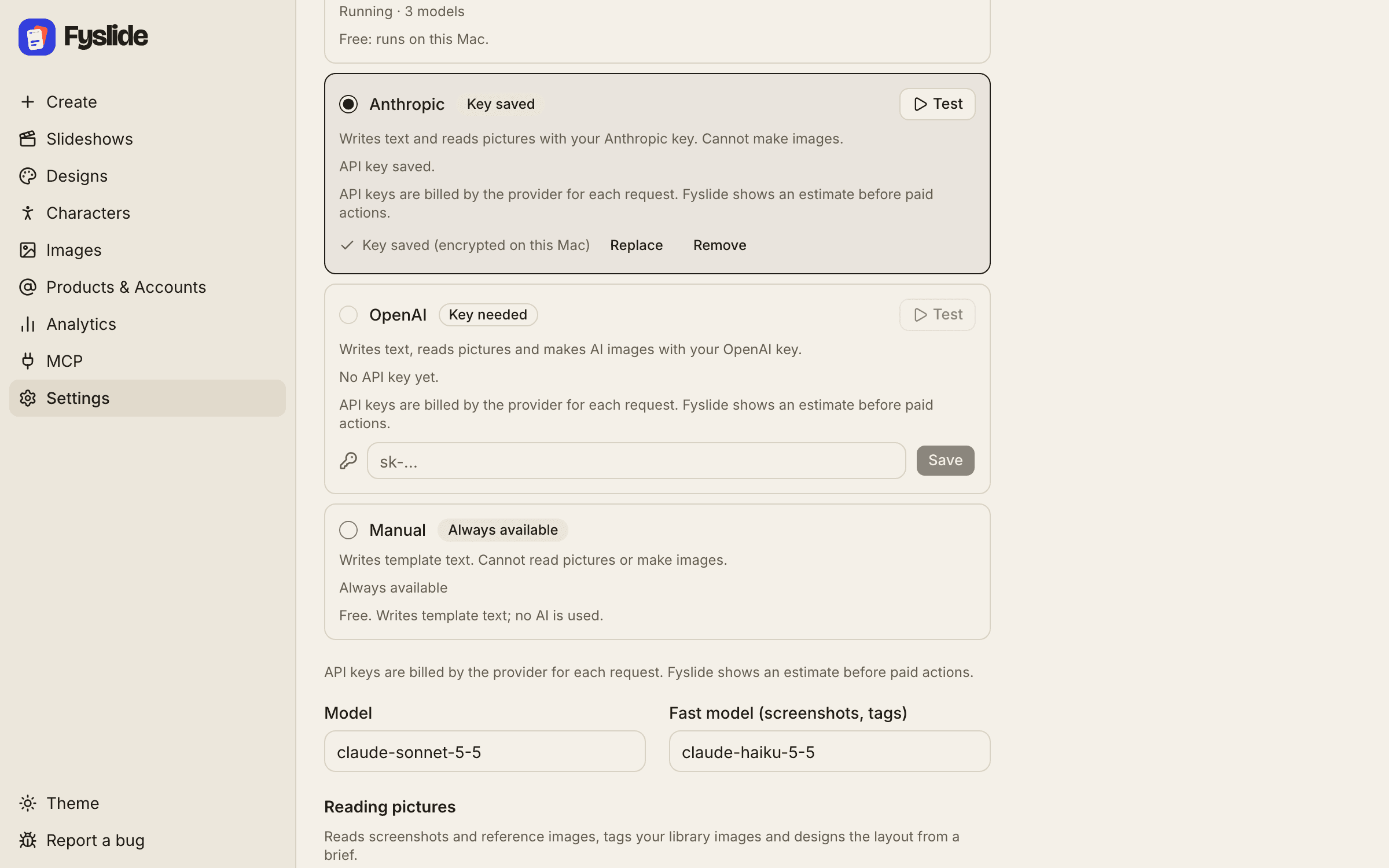
- Open Settings and the AI section.
- The OpenAI row shows Key needed. Paste your key (it starts with
sk-) and click Save. You then see “Key saved (encrypted on this computer)” with Replace and Remove. - To write texts with OpenAI, select the OpenAI radio button and check the Model field. To only enable images, leave your other provider selected.
- Click Test on the OpenAI row (a tiny paid request).
- Scroll to Writing: a line says “AI images: OpenAI key found … every run asks first.”
Vision
Yes. Screenshots and images are sent to OpenAI as image inputs. For Create → From a prompt and From screenshots, Fyslide can also let OpenAI design the layout; it shows the cost and asks first, and offers the free local model as the alternative.
Cost
OpenAI bills every request to your account. Fyslide adds nothing, shows an estimate before each paid action, and never retries a paid call on its own. AI images cost more than text: the image count and the estimated price appear on the button (for example “Generate 3 · about …”) before anything is made.
What needs an OpenAI key:
- Create: Image source → AI generated, and character scenes.
- Characters: Generate variations and Improve with AI.
- Editor: Generate scene with character…, Generate a mockup, and new images from Improve with AI.
Troubleshooting
| What you see | What to do |
|---|---|
| Badge “Key needed”, or “OpenAI needs an API key. Add your key in Settings → AI …” | Paste a key into the OpenAI row and click Save. |
| “OpenAI rejected the API key (HTTP 401).” | The key is wrong or revoked. Click Replace and paste a fresh one. |
| “OpenAI rate limit reached.” | Wait for the time shown, check your usage limits on the platform, or use another provider for text. |
| “OpenAI returned an error (HTTP …)”, “did not answer within 120 s” | Usually temporary or a billing problem on your account. Check the platform dashboard, then try again. |
| AI images are greyed out | Settings → Writing explains why. Most often no OpenAI key is saved. |
OpenAI and ChatGPT are trademarks of OpenAI. Fyslide is not affiliated with or endorsed by OpenAI.
Logos are shown only to identify the services you can connect to Fyslide.