
Gemini · 7 min read
Use Gemini CLI with Fyslide
Write slides with Google’s Gemini CLI, and add Fyslide’s MCP server to Gemini CLI by hand.
Gemini CLI is Google’s open-source agent for the terminal. Fyslide can use your signed-in gemini command to write slide texts and read screenshots.
Check your Google account type first
Since 18 June 2026 Google positions Gemini CLI for organizations with Gemini Code Assist Standard or Enterprise (plus legacy paid API and Vertex keys). Free individual access and Google AI Pro / Ultra moved to Google’s separate Antigravity CLI (agy). Fyslide uses the gemini command only. If you do not have a Code Assist licence or a paid key, pick Ollama (free) or another provider instead. Check Google’s Gemini CLI page for the current status.
What it is and who it suits
Choose this if your organization gives you Gemini Code Assist, or you already run Gemini CLI with a paid Gemini API or Vertex AI key. Fyslide reuses that login, so there is nothing to paste into Fyslide. It can read images.
Install and sign in
npm install -g @google/gemini-cli
# or
brew install gemini-cli
Then run gemini in Terminal and pick how to sign in: Sign in with Google (browser; organization accounts also need a Google Cloud project), a Gemini API key or Vertex AI. The credentials are cached for later sessions. Details are in Google’s authentication guide and installation guide.
Set it up in Fyslide
- Open Settings; the AI section is at the top.
- The Gemini row should show Ready with the path and version. Not installed: install it and come back.
- Select the Gemini radio button.
- Click Test and look for “Text works in … s. Reading pictures works in … s.”
- Optional: Model (optional); empty uses Gemini CLI’s own default.
- Generate in Create. Advanced → Text generation overrides the provider for one run.
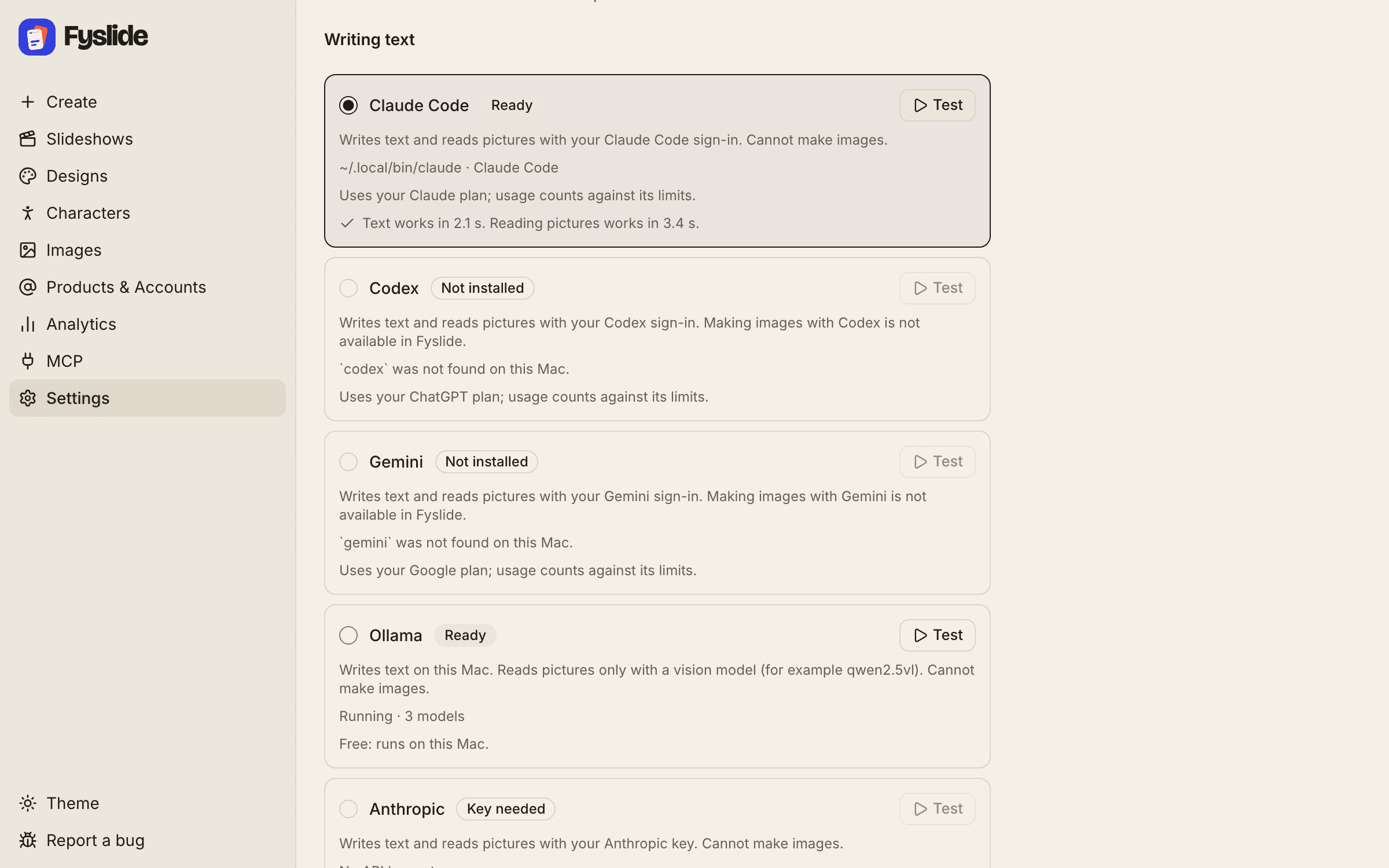
Fyslide runs gemini non-interactively with extensions and MCP servers off, in an empty temporary folder, with shell, web and file-writing tools excluded. It only returns text.
Vision
Yes, if your Gemini CLI sign-in allows it. Pictures are passed to gemini next to the prompt. Use Test to confirm: it also checks that reading a picture works.
Cost
Whatever your Google licence or key costs; usage counts against its limits. Fyslide adds nothing. AI image generation needs an OpenAI API key regardless of the text provider.
Add Fyslide to Gemini CLI (MCP, manual)
Fyslide’s MCP page connects Claude Code, Codex and Cursor in one click. For Gemini CLI you add the same server by hand. Keep Fyslide open and licensed, then add this to the mcpServers object in ~/.gemini/settings.json (merge it into the file; do not replace your other settings):
{
  "mcpServers": {
    "fyslide": {
      "command": "/Applications/Fyslide.app/Contents/Frameworks/Fyslide Helper.app/Contents/MacOS/Fyslide Helper",
      "args": [
        "/Applications/Fyslide.app/Contents/Resources/app.asar.unpacked/out/mcp/server.js"
      ],
      "env": {
        "ELECTRON_RUN_AS_NODE": "1"
      }
    }
  }
}
Or let Gemini CLI write it (per Google’s MCP docs, -s user stores it in ~/.gemini/settings.json):
gemini mcp add -s user -e ELECTRON_RUN_AS_NODE=1 fyslide '/Applications/Fyslide.app/Contents/Frameworks/Fyslide Helper.app/Contents/MacOS/Fyslide Helper' /Applications/Fyslide.app/Contents/Resources/app.asar.unpacked/out/mcp/server.jsRestart Gemini CLI, then run gemini mcp list to check that fyslide is connected. The paths assume Fyslide is in /Applications. See the MCP workflow guide for how to work with the tools.
Troubleshooting
| What you see | What to do |
|---|---|
“Gemini is not installed on this computer. Install it with npm i -g @google/gemini-cli …” | Install it (commands above) and return to Fyslide. |
“Gemini is not signed in. Open Terminal, run gemini and sign in.” | Do that, then press Test again. Remember the account note at the top: a free or Google AI plan account is no longer served by Gemini CLI. |
| “… is rate limited (your plan’s usage limit may be reached).” | Your plan’s usage limit is used up for now. Wait until it resets, or pick another provider in Settings → AI. Fyslide never retries paid or limited calls in a loop. |
| “… did not answer within 120 s.” | The request took longer than two minutes. Try again; a very long slideshow or a busy provider can cause it. For one run you can pick another provider under Create → Advanced → Text generation. |
| “Gemini returned an answer Fyslide could not read.” | Try again, or update Gemini CLI (npm i -g @google/gemini-cli@latest). |
Gemini and Google are trademarks of Google LLC. Fyslide is not affiliated with or endorsed by Google.
Logos are shown only to identify the services you can connect to Fyslide.