
Claude Code · 8 min read
Claude Code with Fyslide: as your AI, and as your slideshow agent
Use Claude Code to write your slides, and connect Fyslide’s local MCP server so Claude Code can create, edit and export slideshows for you.
Claude Code is Anthropic’s coding agent for the terminal. It works with Fyslide in two independent ways, and you can use either or both:
- Claude Code as the AI provider. Fyslide calls your
claudecommand to write slide texts, captions and rewrites, and to read screenshots. - Claude Code drives Fyslide through MCP. You chat with Claude Code in plain language and it operates Fyslide: it lists designs, creates slideshows, edits texts, swaps images and exports.
Part 1: Claude Code as your AI provider
What it is and who it suits
Choose this if you already pay for a Claude plan and use Claude Code. Fyslide uses the login you already have, so there is no API key to manage and no extra bill. It is a good fit for writing hooks and slide texts, and it can read images, so it also works for turning screenshots into designs.
Install and sign in
Install Claude Code with Anthropic’s native installer (the method Anthropic recommends), or with Homebrew or npm:
curl -fsSL https://claude.ai/install.sh | bash
# or
brew install --cask claude-code
# or
npm install -g @anthropic-ai/claude-code
Then open Terminal, run claude once and sign in (type /login if it does not ask). You need a Claude account that Claude Code accepts; see Anthropic’s setup page for the current requirements and the other install options.
Set it up in Fyslide
- Open Fyslide and click Settings in the sidebar. The AI section is at the top.
- Find the Claude Code row. Its badge should say Ready, and the line under it shows where
claudewas found and its version. Fyslide looks in your PATH and in the usual install folders (~/.local/bin, Homebrew,~/.npm-global/bin,~/.bun/bin, nvm). If it says Not installed, install it as above and switch back to Fyslide; the list refreshes when the window gets focus. - Select the radio button of the Claude Code row. The choice is saved automatically.
- Click Test on that row. Fyslide sends a tiny request and shows, for example, “Text works in 3.2 s. Reading pictures works in 5.1 s.”
- Optional: leave Model (optional) empty to use Claude Code’s own default model, or type a model name to force one.
- Open Create and generate something. For a single run you can pick another provider under Advanced → Text generation.
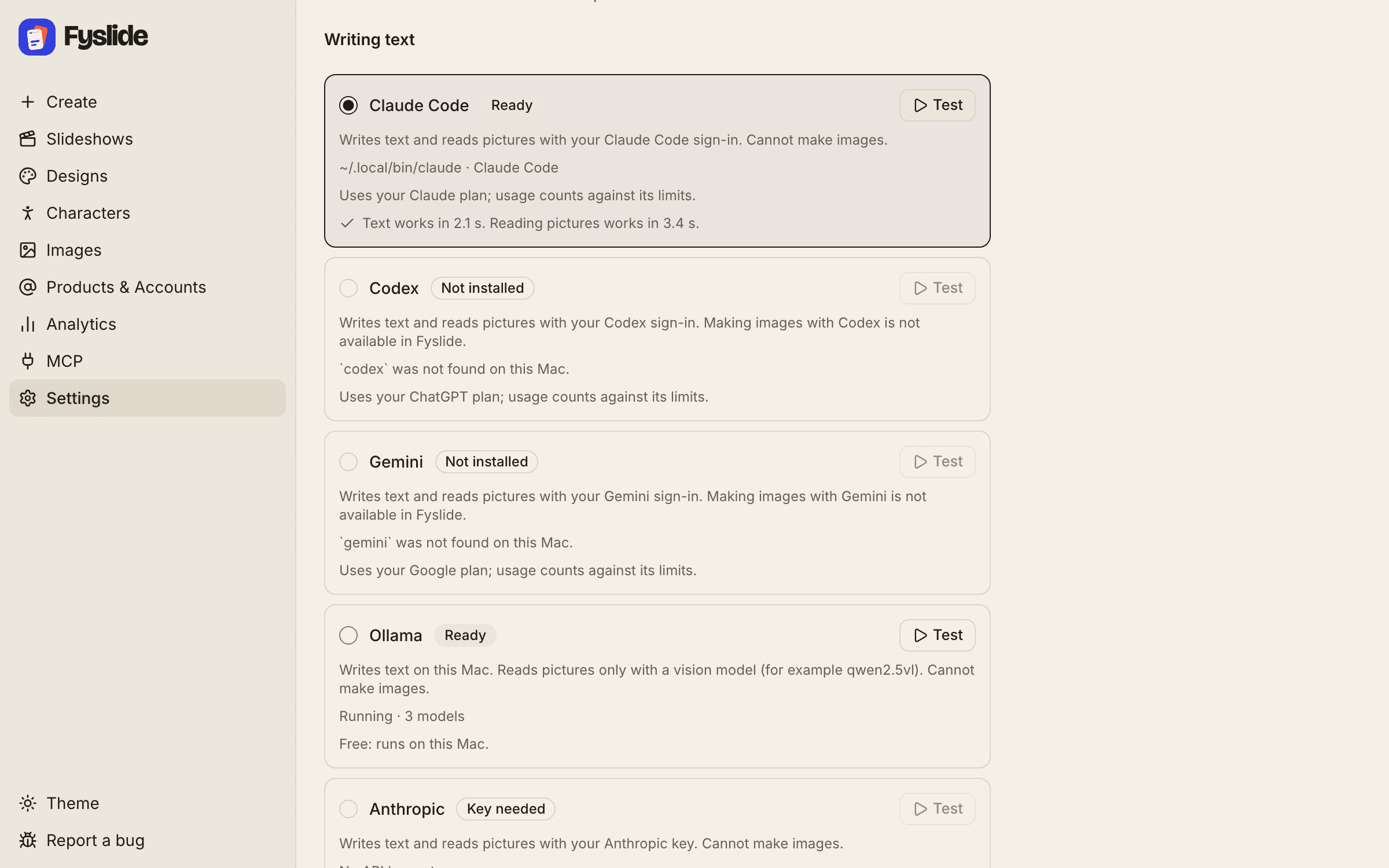
Fyslide starts the claude command you installed, unmodified, in an empty temporary folder with its tools switched off, so it only returns text. It never changes your files, and it never touches your Claude login.
Vision
Yes. Claude Code can read images, so it works for everything that needs vision: New from screenshots in Designs, Create → From screenshots, and tagging your library images.
Cost
Usage counts against your Claude plan and its limits. Fyslide itself charges nothing for AI. Generating images (AI pictures for characters, scenes and mockups) is separate and needs an OpenAI API key, whichever text provider you chose.
Part 2: let Claude Code drive Fyslide (MCP)
Fyslide includes a local MCP server named fyslide with 17 tools. Once Claude Code is connected to it, you can ask for slideshows in plain language and watch them appear in the app. Everything stays on your computer: Claude Code starts the server as a local process.
- Keep Fyslide open and licensed. The tools talk to the running app.
- In Fyslide open MCP in the sidebar. Next to Claude Code click Connect. If the row already says Connected, you are done; Needs repair means Fyslide moved, click Repair.
- Open a new Claude Code session so it loads the server.
claude mcp listshould showfyslide, and/mcpinside a session shows its tools. - Ask for something. Examples:
List my Fyslide designs, then create a 6-slide slideshow about
"3 stretches for desk workers" with the cleanest design. Use the
photos in ~/Pictures/stretches.
Open the slideshow "3 stretches for desk workers", make the hook on
slide 1 shorter and punchier, then export it as JPG.Search my Fyslide library for "kitchen", replace the picture on
slide 3 with the best match and show me the result.Anything that costs money or overwrites your work comes back as a plan first. Claude Code should show you the plan and call confirm only after you say yes. Pictures are passed as absolute paths on your computer. Long jobs (creating, generating, exporting) answer with a job id that Claude Code follows until it is done.
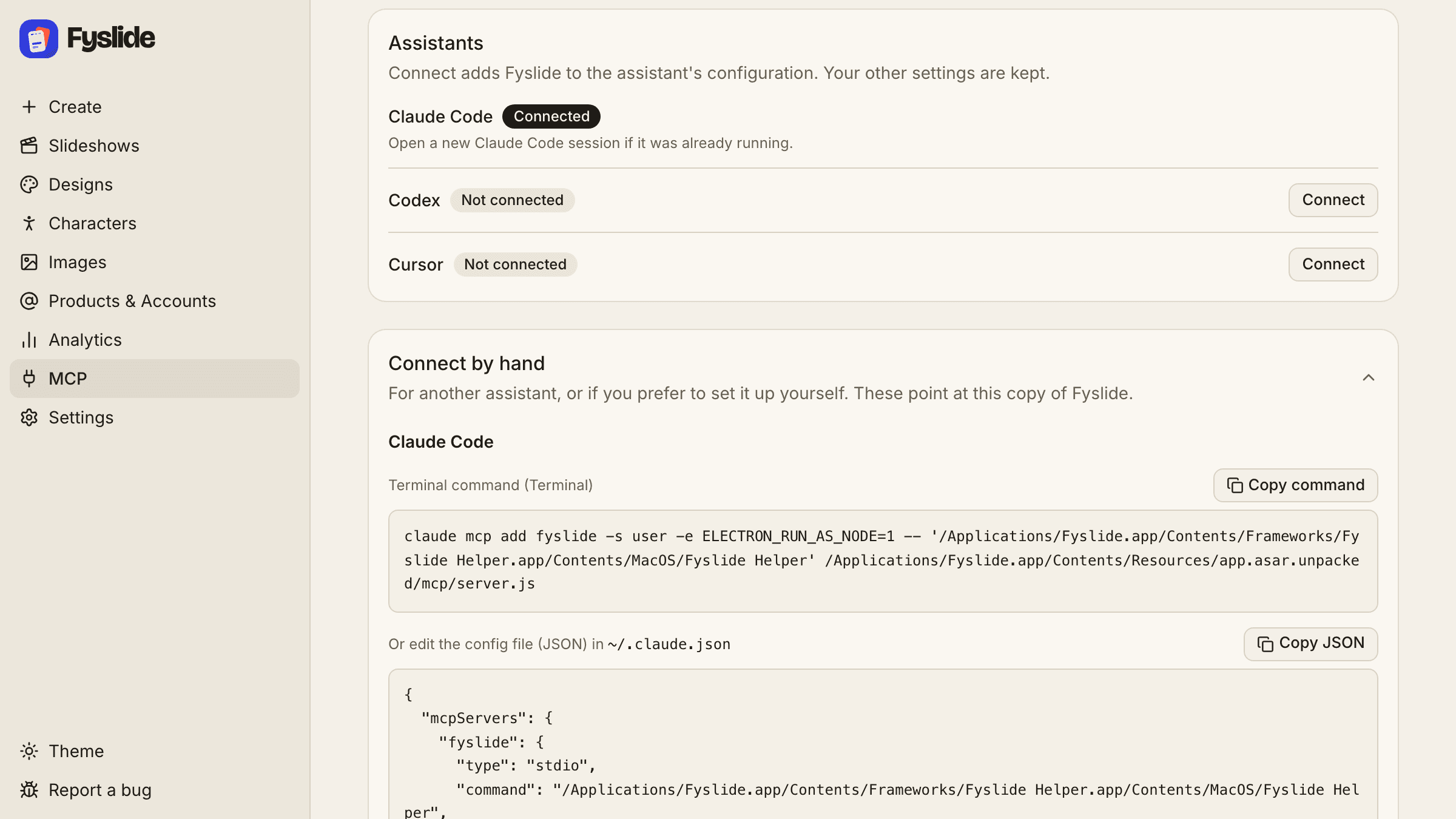
What Connect writes
If the claude command is installed, Connect runs it for you (first claude mcp remove fyslide -s user, then):
claude mcp add fyslide -s user -e ELECTRON_RUN_AS_NODE=1 -- '/Applications/Fyslide.app/Contents/Frameworks/Fyslide Helper.app/Contents/MacOS/Fyslide Helper' /Applications/Fyslide.app/Contents/Resources/app.asar.unpacked/out/mcp/server.jsWithout the command it edits ~/.claude.json itself (the original is kept next to it as .fyslide-backup, everything else in the file stays untouched) and adds this entry:
{
  "mcpServers": {
    "fyslide": {
      "type": "stdio",
      "command": "/Applications/Fyslide.app/Contents/Frameworks/Fyslide Helper.app/Contents/MacOS/Fyslide Helper",
      "args": [
        "/Applications/Fyslide.app/Contents/Resources/app.asar.unpacked/out/mcp/server.js"
      ],
      "env": {
        "ELECTRON_RUN_AS_NODE": "1"
      }
    }
  }
}
The paths shown assume Fyslide is in /Applications; the app writes the location of the copy you actually run. ELECTRON_RUN_AS_NODE=1 lets the Fyslide binary run the server script with its built-in Node, so you do not need Node installed. The full tool list is in the MCP reference, and the MCP workflow guide walks through the page step by step.
Troubleshooting
| What you see | What to do |
|---|---|
| Badge says “Not installed”, or “Claude Code is not installed on this computer.” | Install it (commands above), then return to Fyslide. If you installed it in an unusual folder, make sure claude also works in a fresh Terminal window. |
“Claude Code is not signed in. Open Terminal, run claude and type /login.” | Do exactly that, finish the browser sign-in, then press Test again. |
| “… is rate limited (your plan’s usage limit may be reached).” | Your plan’s usage limit is used up for now. Wait until it resets, or pick another provider in Settings → AI. Fyslide never retries paid or limited calls in a loop. |
| “… did not answer within 120 s.” | The request took longer than two minutes. Try again; a very long slideshow or a busy provider can cause it. For one run you can pick another provider under Create → Advanced → Text generation. |
| “Claude Code returned an answer Fyslide could not read.” | Try again. If it keeps happening, update Claude Code (claude update) or choose another provider. |
| Claude Code does not see Fyslide’s tools | Open a new session after connecting. Check claude mcp list. If Fyslide is not in /Applications, click Repair on the MCP page. |
| Tools say they cannot reach Fyslide | Open Fyslide and keep it running; it must also be activated (see License). |
Claude, Claude Code and Anthropic are trademarks of Anthropic, PBC. Fyslide is not affiliated with or endorsed by Anthropic.
Logos are shown only to identify the services you can connect to Fyslide.