MCP · 6 min read
MCP: let an AI agent drive Fyslide
Connect Claude Code, Codex or Cursor to Fyslide’s local MCP server in one click and hand over the busywork.
MCP (Model Context Protocol) lets an AI assistant use an app’s tools. Fyslide ships a local MCP server called fyslide. Connected assistants can list your designs, create slideshows, edit texts, replace images and export, while you watch it happen in the app.
1. Know the requirements
Fyslide must be running and licensed; every tool checks the license and talks to the open app. The server is started by your assistant as a local process, nothing is exposed to the network.
2. Open the MCP page
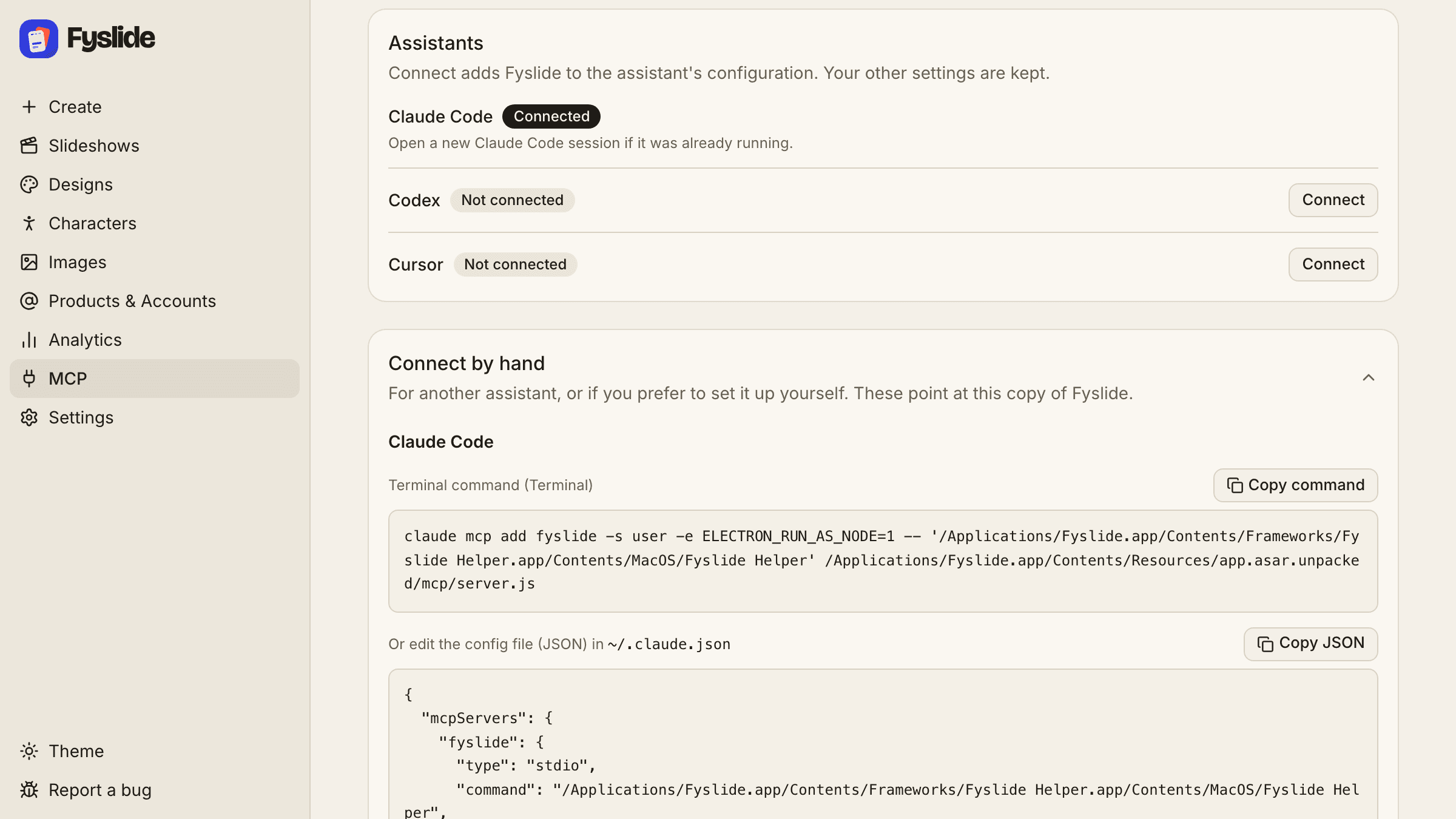
Click MCP in the sidebar. The Assistants card lists Claude Code, Codex and Cursor with a state each: Connected, Not connected, Needs repair or Not installed. Check again refreshes the list.
3. Connect
Click Connect (or Repair) next to your assistant. Fyslide adds itself to that assistant’s configuration and keeps your other settings; an existing file is backed up as .fyslide-backup. Details per assistant: Claude Code, Codex, and Gemini CLI by hand.
4. Start a new session
Open a new Claude Code session, start a new Codex session or restart Cursor, so it loads the server.
5. Ask in plain language
List my Fyslide designs and make a 6-slide slideshow about
"3 stretches for desk workers" using the photos in
~/Pictures/stretches. Then export it as PNG.
Pictures are given as absolute file or folder paths on your computer, or as web links.
6. Follow jobs and confirm plans
Long work (creating, generating, exporting) answers a job id that the assistant follows until it is done. Anything that costs money or overwrites your work comes back as a plan first. Your assistant must show it to you and call confirm only after you say yes.
7. Connect another assistant by hand
The Connect by hand card has Copy command (Claude Code) and Copy JSON (Cursor, Claude Desktop and others). The same entry works in any MCP client that starts a stdio server.
8. What the tools can do
21 tools in 3 groups; the tool reference lists every input and output:
- Read: list_designs, list_collections, list_slideshows, get_slideshow, search_library, get_job, wait_for_job, list_planned_posts
- Make: create_slideshow, rebuild_from_screenshots, design_from_screenshots, import_images, export_slideshow, generate
- Change: update_slide_text, update_slide_element, replace_slide_image, confirm, plan_post, move_planned_post, remove_planned_post
Tips
- If tools say they cannot reach Fyslide, open the app and keep it running. If the assistant does not see the tools, start a new session.
- Moved the app out of
/Applications? Click Repair.