Docs
Getting started
From download to your first exported slideshow. Plan for about fifteen minutes, most of it for connecting your AI.
1. Check the requirements
- A Mac with macOS. There are two builds: Apple Silicon (M-series chips) and Intel. Or a Windows 10/11 PC for the Windows Beta (built and checked automatically, not yet tested on real hardware, unsigned until code signing is done; Windows shows a SmartScreen warning: click More info, then Run anyway. See the download page).
- Google Chrome installed. Fyslide uses it to render and export slides.
- A Fyslide license key. The download is free, but the app needs a license to run.
2. Install
On a Mac, download the build for your Mac from the download page, open the .dmg and drag Fyslide into Applications. Start it from Applications, then eject the disk image.
3. Activate
On first launch Fyslide asks for your license key. Paste it and the app activates this computer. One key works on one computer (Mac or Windows); to move it later, see License. After activation the app works offline.
4. Connect an AI
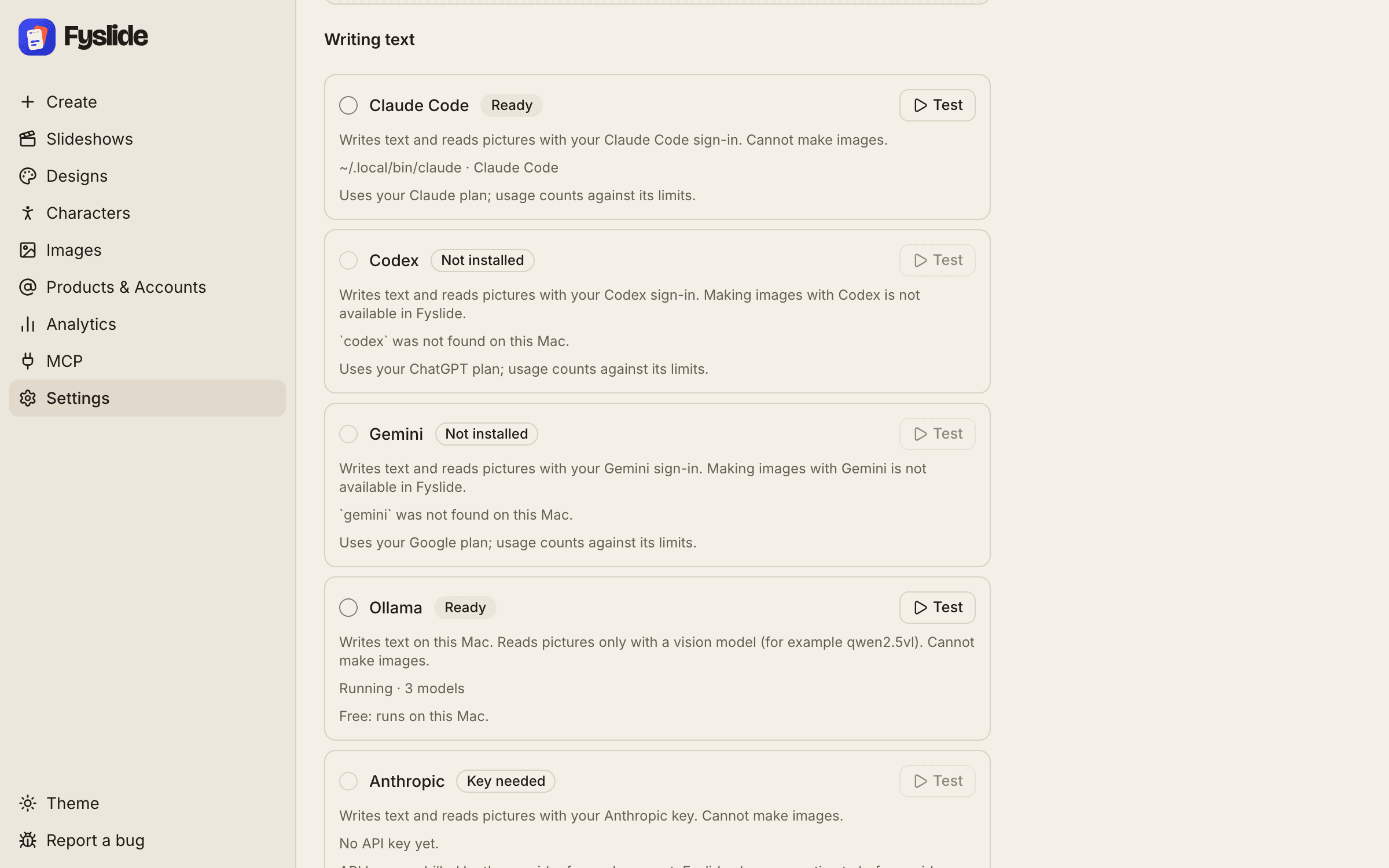
Fyslide doesn’t include an AI; it uses yours. Open Settings and choose one of: Claude Code CLI, Codex CLI, Gemini CLI, Ollama, an Anthropic API key or an OpenAI API key. The AI setup page explains each, including which ones can read images, and every provider has its own step-by-step guide there.
5. Add some images
Open Images, your image library. Import a folder, drag and drop files, or paste from the clipboard, and group them into collections. Optionally search Openverse for Creative Commons images (keep the attribution), or use the optional Pinterest search.
6. Create your first slideshow
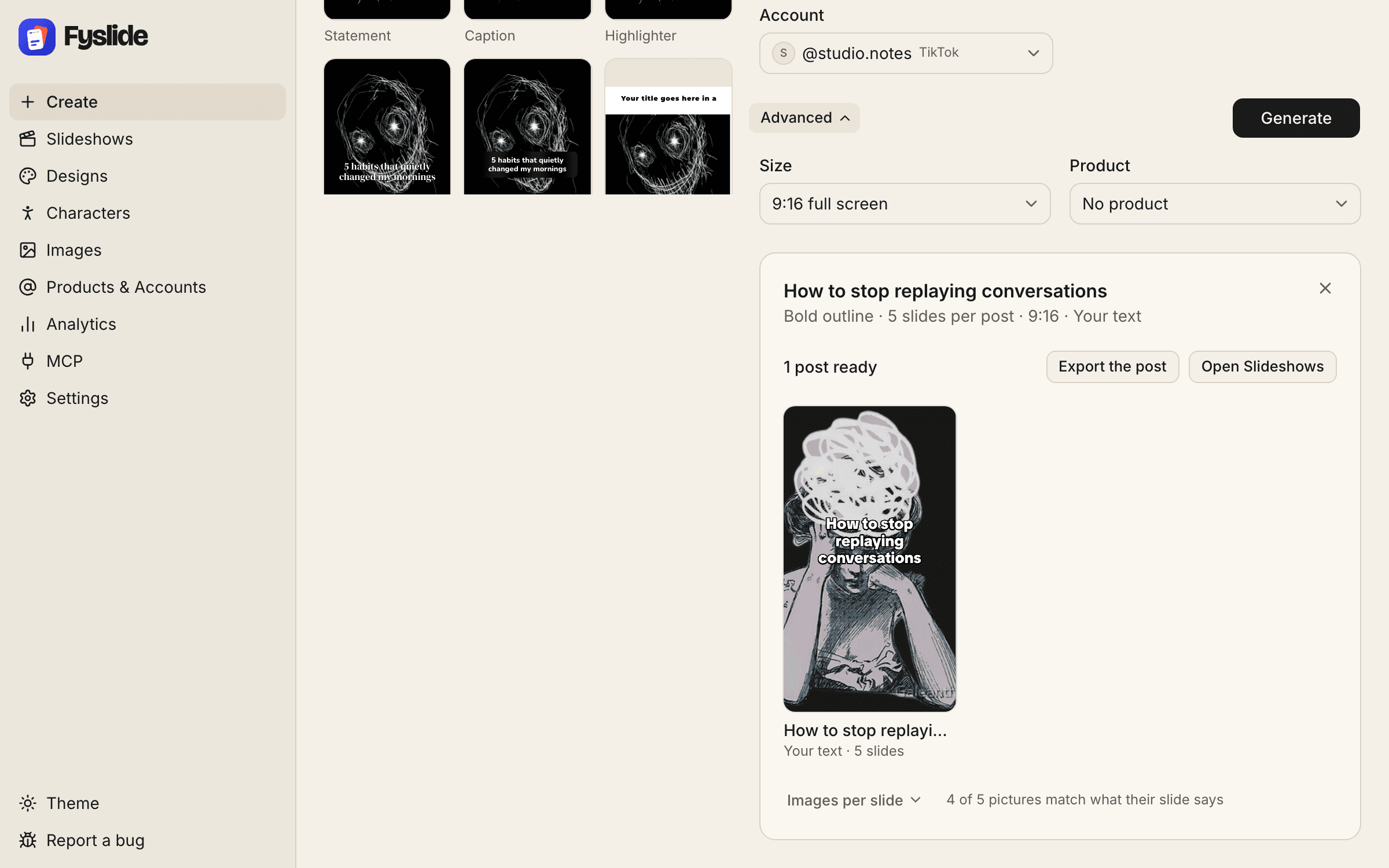
Open Create, pick a design and type a topic. Your AI writes the slide texts into the design. Then refine every slide in the editor: text, images, stickers and shapes.
7. Export
Export the slideshow as PNG or JPG slides plus the caption and a zip, into a folder you choose. Upload the slides to TikTok or Instagram from there.
Where your data is stored
Your library, designs and slideshows are stored locally in ~/Library/Application Support/Fyslide. Back up that folder like any other important data.